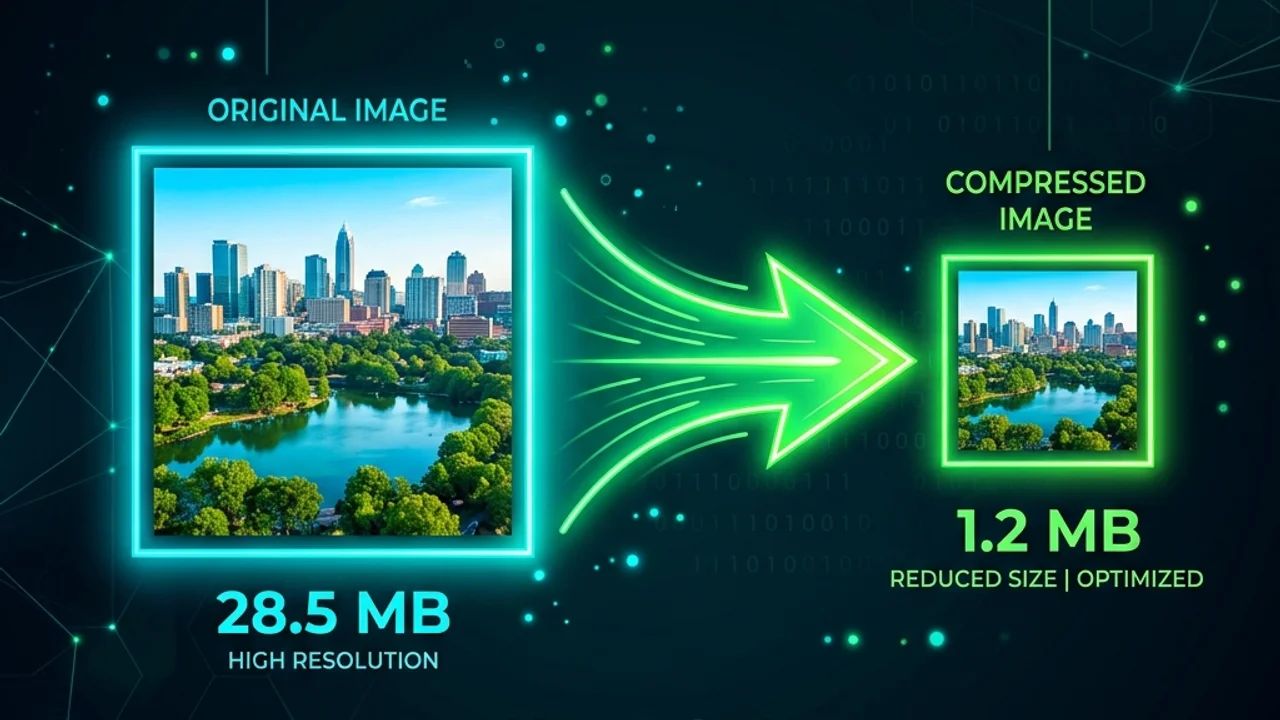
Have you ever wondered why some websites load instantly while others lag, loading image blocks slowly from top to bottom? In most cases, the culprit is unoptimized, high-resolution image files, which commonly make up over 60% of an average web page's total weight. Modern smartphones and cameras capture images that are several megabytes (MB) in size. Uploading these directly to a server causes sluggish loading times, consumes visitors' mobile data, and increases hosting bandwidth fees.
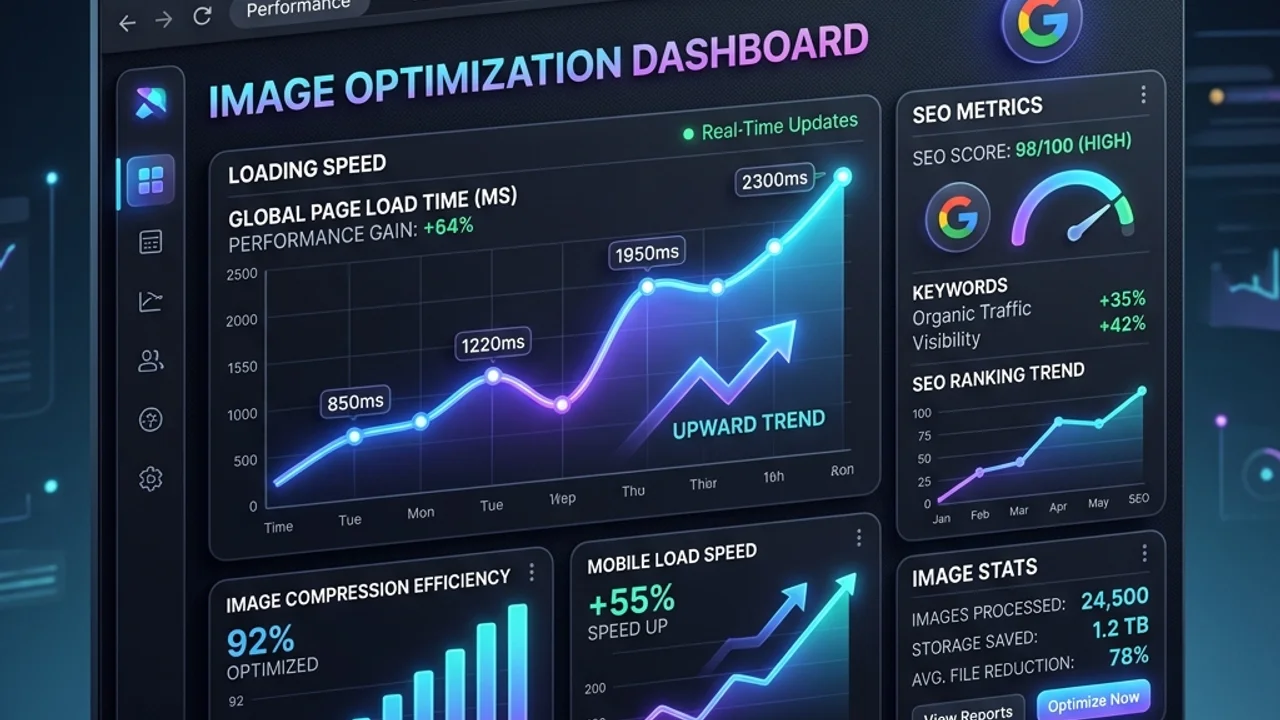
Google incorporates page load speed and user experience metrics, particularly LCP (Largest Contentful Paint), into its search engine optimization (SEO) ranking algorithm. Compressing images to minimize file sizes without visibly degrading quality is no longer optional—it is a web development necessity. This guide breaks down how image compression works, compares major formats, and shares best practices for web performance.
1. Lossy vs. Lossless Compression (WebP, JPG, and PNG)
Image compression falls into two primary categories: lossy compression, which permanently discards redundant visual data to shrink files dramatically, and lossless compression, which reduces file size while preserving every original pixel.
JPEG (JPG)
- Method: A lossy format using Discrete Cosine Transform (DCT). It prioritizes brightness details over fine color variations, where human vision is less sensitive.
- Downside: High compression ratios cause blockiness (blocking artifacts) and fuzzy halos around text (ringing). It also lacks support for transparency.
PNG
- Method: A lossless format using the Deflate algorithm. It preserves perfect pixel accuracy and supports full transparency (alpha channel).
- Downside: While image quality is flawless, file sizes become extremely large for complex, colorful photographs.
WebP
- Method: A modern image format developed by Google that supports both lossy and lossless compression. Based on the VP8 video codec's intra-frame prediction technology, it predicts pixel values from neighbors and encodes only the difference.
- Efficiency: WebP yields files that are 25% to 35% smaller than comparable JPEGs and 26% smaller than lossless PNGs, all while supporting alpha channel transparency.
Here is a structural comparison of these popular web formats:
| Format | Compression Type | Transparency | Size Reduction Rate | Best Use Case |
|---|---|---|---|---|
| JPG / JPEG | Lossy | No | Baseline | Photographs, scenery images where transparency is not needed |
| PNG | Lossless | Yes | Low (Large file sizes) | Icons, logos, UI screenshots, text-heavy diagrams |
| WebP | Lossy & Lossless | Yes | 25%–35% smaller than JPG | Modern web publishing, SEO optimization, and web assets |
2. Technical Concepts of Web Image Optimization
Understanding how compression behaves helps you select the right quality thresholds.
Chroma Subsampling
Human eyes are much more sensitive to changes in brightness (luminance) than changes in color (chrominance). Chroma subsampling reduces color resolution while keeping brightness details intact. Standard compression algorithms apply a 4:2:0 ratio, which effectively cuts raw color data in half with zero perceptible change in quality.
Spatial Prediction
WebP takes advantage of nearby pixel correlation. By predicting the color values of a block based on adjacent blocks and only saving the differences (residuals), WebP minimizes blocking artifacts. This lets WebP maintain clean gradients and sharp edges where JPEGs would display messy artifacts.
3. A 4-Step Workflow for Optimizing Images
Follow this simple, effective workflow to prepare graphics for web deployment:
- Resize First: Never compress a
4000x3000pxphotograph to show it in a400pxmobile container. First, resize the image's physical dimensions to a maximum of double the display size (for retina screens), then compress it. - Convert to WebP: Translate older JPG and PNG files into WebP. Over 98% of modern web browsers fully support WebP, guaranteeing cross-device compatibility.
- Target Quality Level (75–85): When saving lossy files, a quality setting between
75and85strikes the perfect balance. It drops file size by up to 80% while keeping the image looking crisp to the human eye. - Use Lossless for Diagrams: Text charts and infographics lose legibility when compressed using lossy formats. Keep them as PNG, lossless WebP, or vector
SVGfiles.
4. Frequently Asked Questions (FAQ)
Q1. Will compressing an already compressed JPEG save more space? A1. Rarely. Re-compressing an already compressed image often results in minimal size savings or can even increase file size due to header overhead. More importantly, it accumulates compression artifacts, resulting in a blurry, pixelated image.
Q2. How can I tell the difference between lossy and lossless quality? A2. At quality levels above 80%, you won't be able to tell the difference unless you zoom in closely to inspect high-contrast borders. If you notice fuzzy pixels or gray patterns around black text on a white background, the quality value is set too low.
Q3. When should I use SVG instead of WebP? A3. SVG is a vector format containing math formulas, not pixels. It scales infinitely without losing sharpness and is tiny (often under 5KB). Use SVG for simple vector logos, illustrations, and line icons, and WebP for realistic photographs.
5. Compress Your Images Instantly
Optimize your files in seconds without installing bulky desktop applications.
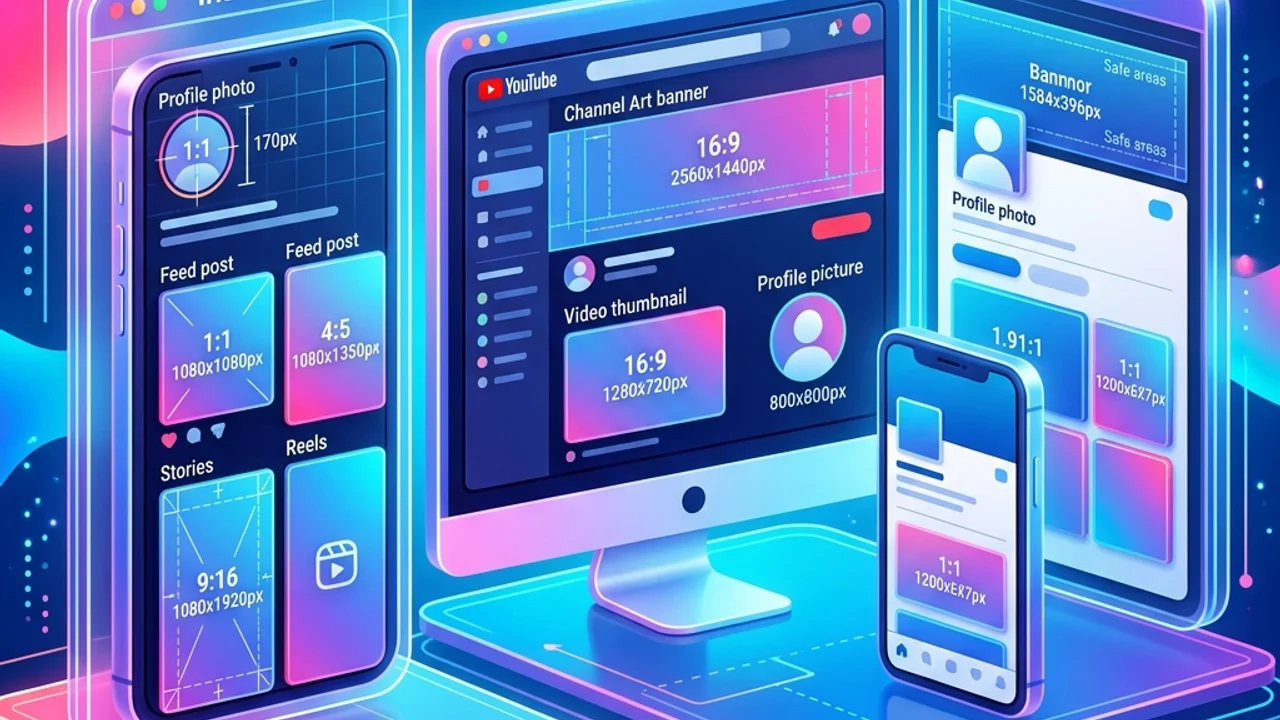
Our free Image Compressor tool processes your photos directly inside your web browser. No data is sent to external servers, protecting your privacy. If you need to fit specific layout dimensions, use the Social Media Resizer to crop your images and save them in high-performance web formats.
Recommended Reading
- Social Media Image Size Guide: Optimal dimensions for Instagram and YouTube banners.
- Secure Password Tips & Guidelines: Keeping your online accounts safe from hackers.