In social media marketing, first impressions dictate user engagement. Designers and marketers spend hours crafting promotional graphics or video thumbnails, only to find them pixelated, blurry, or cropped awkwardly after uploading.
This occurs because social networks—such as Instagram, YouTube, and LinkedIn—forcefully compress and crop images to accommodate responsive screen layouts across mobile, desktop, and TV displays. Understanding recommended image upload dimensions and maintaining a central "Safe Zone" is critical to preserving your visual assets. This guide details optimal sizes and optimization strategies for major platforms.
1. Optimal Image Dimensions by Social Platform
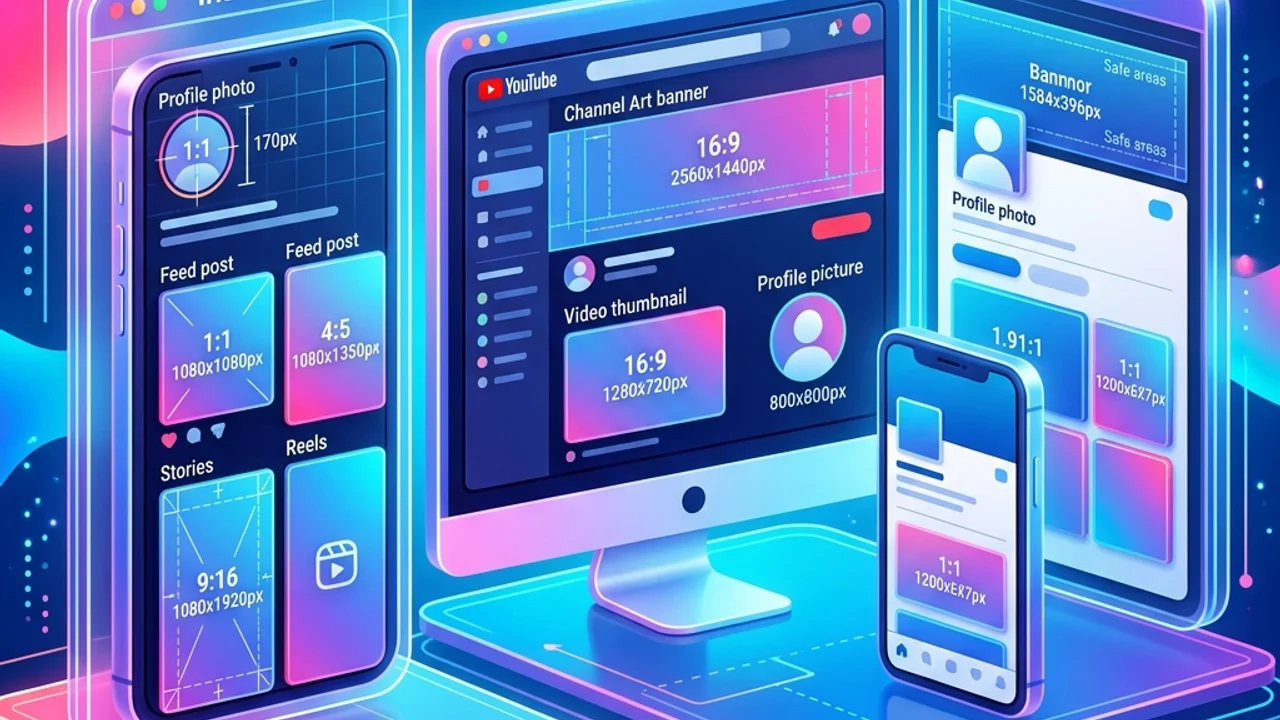
Each social media platform enforces unique image ratios to ensure fast loading times and uniform feed layouts. Below are the standard specifications you should target:
- Profile Picture: While Instagram stores profile pictures at
320 x 320 pixelsinternally, you should upload an image at1080 x 1080 pixelsto keep details sharp on high-density Retina displays. Because profile pictures are cropped into a circle, avoid placing text or logos near the corners. - Feed Posts: Vertical layouts (
1080 x 1350 pixels, or 4:5 ratio) take up significantly more vertical screen space than square (1080 x 1080 pixels) or horizontal formats, resulting in higher user engagement.
YouTube
- Channel Banner: The recommended upload size is
2560 x 1440 pixels(maximum file size 6 MB). Banners scale dynamically depending on the device: TV, desktop, tablet, or mobile. - Banner Safe Zone: Keep all vital information—such as branding, titles, and call-to-actions—within the center
1546 x 423 pixelsbox. Text outside of this area will be cropped out on mobile screens.
This table details the recommended image sizes for key social media platforms:
| Platform | Image Placement | Recommended Resolution | Aspect Ratio | Critical Design Consideration |
|---|---|---|---|---|
| Profile Picture | 1080 x 1080 px |
1:1 (Circle) | Corners are cropped; keep logos centered | |
| Vertical Post | 1080 x 1350 px |
4:5 | Captures more feed real estate, driving engagement | |
| YouTube | Channel Banner | 2560 x 1440 px |
16:9 | Keep main content in central 1546 x 423 px Safe Zone |
| YouTube | Video Thumbnail | 1280 x 720 px |
16:9 (HD) | The time overlay covers the bottom-right corner |
| Company Page Banner | 1128 x 191 px |
~6:1 | Extreme horizontal ratio; keep elements centered |
2. Preventing Compression Artifacts and Image Quality Loss
Matching the pixel dimensions is only half the battle. You must also defend your graphics against the platforms' automatic compression scripts.
- Pre-Compress Your Files: Social media platforms automatically compress large files to reduce bandwidth consumption. If you upload a heavy 10MB PNG file, the server's automated compression will often mangle the details. By using a local compressor to shrink the file below the platform's compression threshold (usually under 1MB) before uploading, you retain control over the visual output.
- Match the Aspect Ratio Exactly: If you upload an image with an incorrect ratio, the platform will crop it or stretch it, distorting your graphics. Always crop your images to the exact target ratio (e.g., 4:5, 16:9, or 9:16) before uploading.
3. A 4-Step Image Resizing Workflow
Use this simple, professional workflow to prepare your graphics for social media:
- Select Target Channels: Identify where the image will be posted. A story post requires a different aspect ratio than a landscape banner.
- Crop and Align Elements: Crop the image to the correct dimensions. If you are designing a header or banner, place a Safe Zone template overlay on your canvas and align all text inside it.
- Choose the Right File Format: Save logos and text-heavy illustrations as PNGs to prevent blurry borders. Use high-quality JPEGs for realistic photographs.
- Compress Before Uploading: Run your image through a compression tool at a quality setting of 85% to minimize file size while maintaining visual clarity.
4. Frequently Asked Questions (FAQ)
Q1. What dimensions should I use for Instagram Stories and YouTube Shorts?
A1. Full-screen vertical media—such as Instagram Stories, Reels, and YouTube Shorts—all share the same standard size: 1080 x 1920 pixels (9:16 aspect ratio). For Stories, avoid placing logos or critical buttons at the top 250 pixels or bottom 250 pixels, as they will be obscured by platform interface overlays.
Q2. Why is the text on my YouTube thumbnail hard to read on mobile devices? A2. Thumbnails are displayed at small sizes on mobile feeds. Avoid script fonts and long sentences. Use bold, heavy sans-serif typefaces and keep your message under 4-5 words. Also, make sure no important text is placed in the bottom-right corner, where the black video duration timer block is displayed.
Q3. Is PNG always a better choice than JPEG for social media uploads? A3. For graphics containing flat solid colors, sharp lines, or text, PNG prevents compression fuzziness. For realistic photos, however, PNGs are too large, which can trigger aggressive platform-side compression. Use a well-optimized JPEG for photographs.
5. Crop and Resize Your Social Media Images Instantly
Manually cropping images and remembering the specific dimensions for each platform can be a tedious chore.
Simplify this task with our free Social Media Resizer. Select your target platform layout (Instagram post, story, YouTube thumbnail, or banner), upload your file, and crop it in one click. Once your image is sized correctly, use our client-side Image Compressor to shrink the file size before uploading to ensure maximum visual quality on your social feeds.
Recommended Reading
- Image Compression Guide: Learn how to compress files without sacrificing detail.
- QR Code Marketing Strategies: Guide to connecting offline print marketing to online channels.