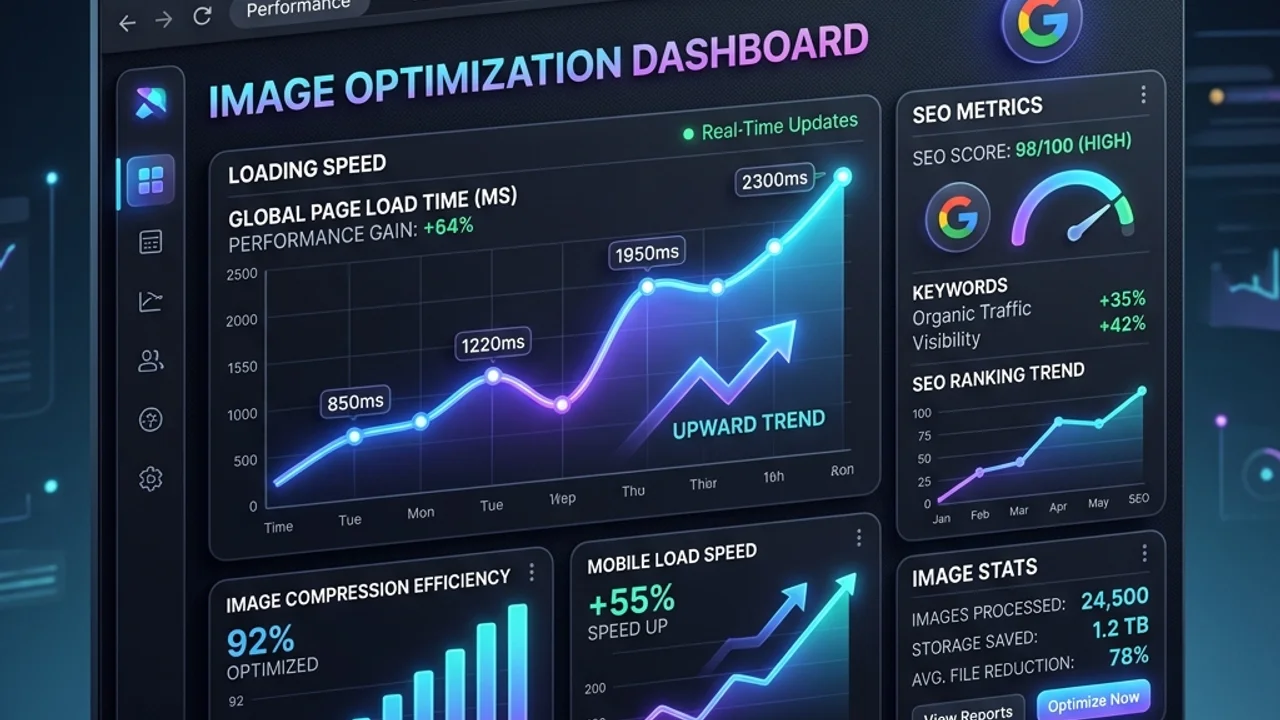
For bloggers and website owners running platforms like WordPress, Ghost, or blogger hoping to rank high on Google Search, one of the most common technical hurdles is slow page loading speed.
Google includes page speed as a ranking factor using its Core Web Vitals guidelines. The primary speed metric is LCP (Largest Contentful Paint), which measures how quickly the main content of a page loads. In most cases, raw, unoptimized image assets make up over 60% of a web page's total file size.
Writing long, high-quality articles is only half the battle. To prevent visitors from bouncing due to slow loading times and to earn positive signals from search engine crawlers, you must implement google SEO blog image optimization. Here is a guide on how to reduce file sizes by over 80% while preserving visual quality.
1. Page Speed and SEO: Comparing Image Formats
Google prioritizes pages that load quickly and render cleanly. Uploading raw camera photographs (often several megabytes each) directly to your blog posts dramatically slows down mobile load times, hurting your search visibility.
To solve this, Google recommends replacing legacy formats like JPEG and PNG with next-generation web-specific image formats.
Comparing Common Web Image Formats
Here is an overview of the primary image formats used in web publishing:
| Format | Key Characteristics | Compression Efficiency | Alpha Channel (Transparency) | Google SEO Recommendation |
|---|---|---|---|---|
| PNG | Lossless compression, supports transparent backgrounds | Low (leads to large files) | Supported | Moderate (use only for logo/transparent icons) |
| JPEG | Lossy compression, optimized for photographs | Moderate | Not Supported | Moderate (good fallback for high-detail photos) |
| WebP | Modern Google standard, lossy/lossless hybrid | Very High (30% smaller than JPEG) | Supported | Excellent (default recommendation for web use) |
| AVIF | Next-gen open-source format, maximum compression | Ultra High (20% smaller than WebP) | Supported | Excellent (fallback required for legacy browsers) |
Today, WebP is the de facto standard for blog optimization. It matches JPEG visual quality at a fraction of the file size, supports alpha transparency like PNG, and is natively supported by modern web browsers.
2. 4 Steps for Practical Blog Image Optimization
Follow these practical steps before uploading any image asset to your blog:
① Resize Image Dimensions
Images captured by modern smartphones or screenshot tools often exceed 3,000 pixels in width. However, most blog layouts restrict content width to around 800px. Uploading oversized images forces browsers to download unnecessary pixel data and downscale it locally. Always resize image width to 800px – 1,000px before uploading.
② Compress File Sizes
Once resized, pass your images through a compression tool to remove unnecessary metadata (such as Exif camera info) and compress the image payload. As a general SEO rule, try to keep every image under 100KB.
③ Input Descriptive Alt Text
Search engine crawlers read alt text attributes within HTML tags to understand image subject matter. Adding descriptive, keyword-aligned alt text to your images helps Google parse your content and index your images in search results.
3. Frequently Asked Questions (FAQ)
Q1. Does image compression noticeably degrade visual quality? A1. The human eye cannot easily distinguish between a raw image and one compressed at 70-80% quality settings on standard mobile or desktop screens. Applying lossy compression dramatically reduces file sizes without a noticeable drop in perceived quality.
Q2. Are WebP images supported by all browsers? A2. Yes. Over 97% of modern web browsers—including Chrome, Safari, Edge, and Firefox—natively support the WebP format.
Q3. Should I stuff keywords into my image alt tags? A3. No. Stuffing unrelated keywords into alt tags is flagged as spam by search crawlers and can result in ranking penalties. Write honest, descriptive one-sentence alt texts describing what is visible in the image.
4. Compress Blog Images Locally in Your Browser
If you want to speed up your blog and reduce hosting bandwidth costs without uploading proprietary designs to third-party servers, try our client-side Image Compressor.
Your image files are optimized entirely within your browser memory without being sent to external clouds. To ensure layout consistency across different sharing channels, check out our guide on Responsive Social Media Image Resizing.