Introduction
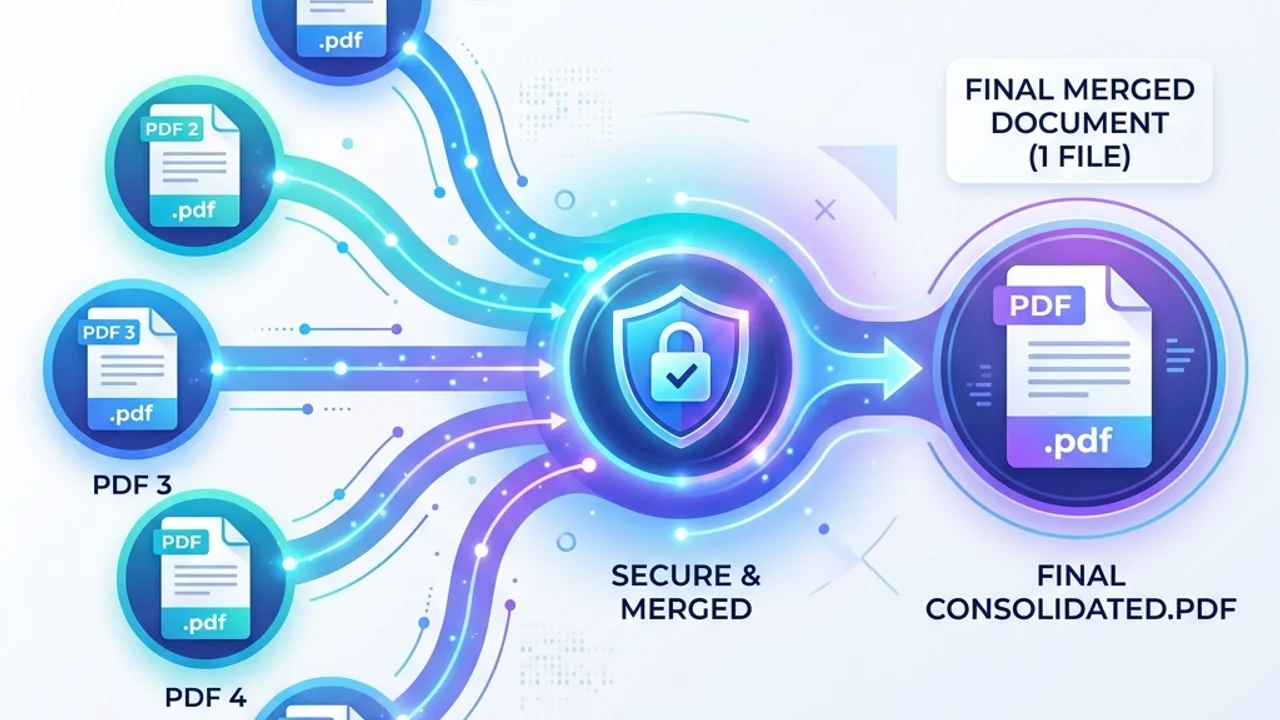
In daily office administration, academic coursework, and personal documentation, combining multiple PDF files is one of the most common tasks. Whether you need to merge a resume and a cover letter, compile monthly receipts for expense reports, or join separate parts of a business proposal, you often need to bundle individual documents into a single cohesive file.
Many users instinctively search the web for "PDF merger" and end up downloading untrusted utilities or uploading sensitive files to obscure online conversion sites. Both behaviors carry notable risks. Installing unverified software can expose your operating system to malware, while uploading confidential contracts to remote servers endangers your data privacy. In this guide, we show you how to securely merge PDF files directly in your web browser (like Google Chrome, Safari, or Microsoft Edge) using local browser-based technologies.
Technical Details: How Local PDF Merging Works
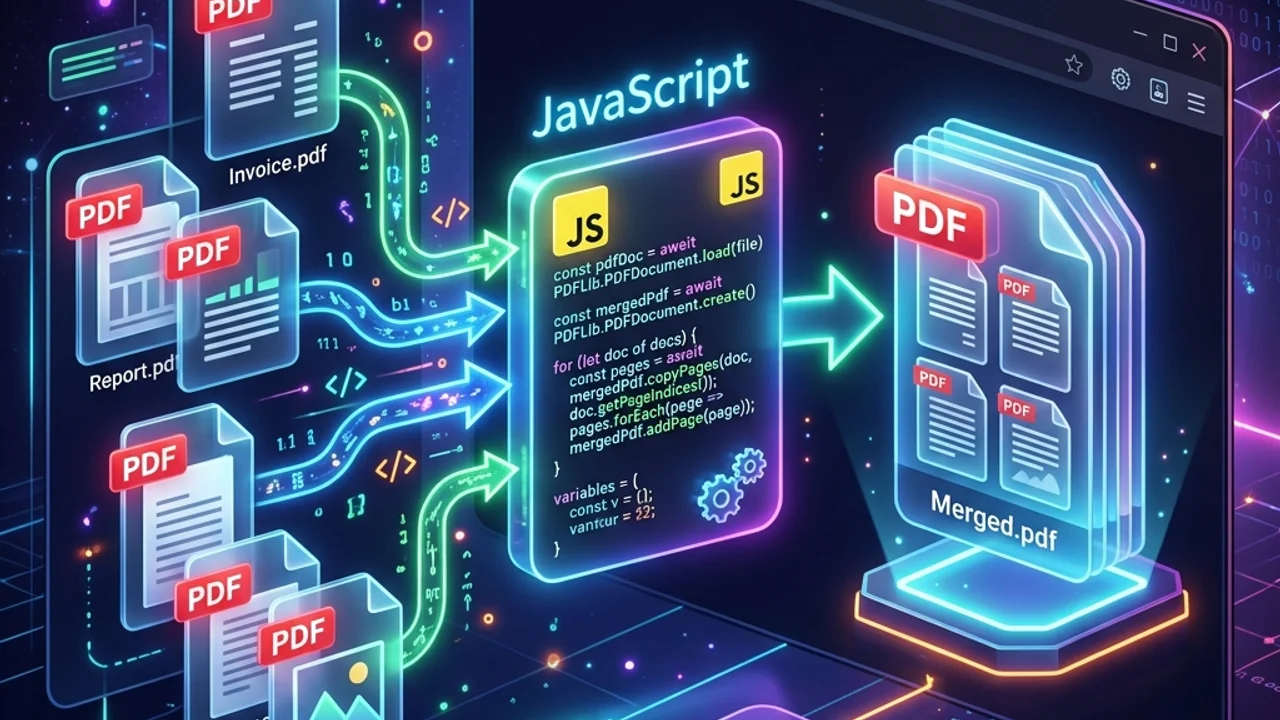
How is it possible to merge PDF files inside a web page without server uploads or app installations? The secret lies in client-side binary data processing via JavaScript engines (such as the open-source pdf-lib library).
1. The Step-by-Step Local Merge Workflow
When you select files in a modern local web application, your browser performs the following operations entirely in its sandbox memory:
- Read Binary Buffers: The selected PDF files are read into the browser's memory space as
ArrayBufferobjects. - Document Structure Parsing: The JavaScript engine parses the raw binary data to identify individual pages, fonts, catalog structures, and cross-reference tables.
- Page Importing (Copying): The engine creates a brand-new, empty destination PDF document. It then imports selected page nodes from the source documents. This step preserves fonts, text layers, and annotations without degradation.
- Serialization & Export: The compiled document is serialized back into a byte array (
Uint8Array) and triggered as a browser file download.
2. PDF Processing Methods Comparison
| Feature | Desktop Software Installation | Standard Online Convert Sites | Browser Local Merge (Recommended) |
|---|---|---|---|
| Setup Overhead | High (Download, install, update) | None (Browser-based) | None (Instant browser-based) |
| Privacy Risk | Low (Runs locally on machine) | High (Uploads files to third-party server) | Zero (Files never leave your local device) |
| Processing Speed | Fast (Varies by hardware) | Moderate (Varies by internet upload speed) | Instant (In-memory execution) |
| Cost & Limitations | Often paid licenses required | Daily limits, watermarks, ads | 100% Free with no limits |
Practical Methods to Merge PDFs Without Software
Here are the best ways to combine your PDF documents safely using browser-native methods.
Method 1: Browser Print Preview (For Basic Needs)
If you only have two small PDFs and just need to compile them in a specific order, you can use the browser's built-in Print-to-PDF utility.
- Drag and drop the first PDF file into a Google Chrome tab to open it.
- Open the browser menu and select [Print] (or press
Ctrl + P/Cmd + P). - Set the destination to 'Save as PDF'.
- Adjust pages if necessary and click save to export a clean copy. (Note: While useful in a pinch, this method can break hyperlinks, flatten interactive form fields, and is tedious for processing multiple documents.)
Method 2: Local Web Applications (For Professional Workflows)
For bulk document compilation, using a client-side JavaScript PDF merger utility is the most robust option.
- Navigate to the Toolhub PDF Merge tool.
- Drag and drop all target PDF files into the designated upload zone.
- Drag to rearrange the order of the documents as desired.
- Click [Merge PDF]. The browser will combine the files in memory and trigger the download of the merged PDF in less than a second.
FAQ & Troubleshooting
Q. Can I merge large PDF files exceeding 50MB?
Yes. However, since local merging runs inside the browser’s heap memory, it depends on your machine's hardware capabilities. Processing 10+ high-resolution scanned documents (over 100MB in total) on a low-end mobile device might temporarily freeze the browser tab. If you experience performance lags, we recommend merging your files in smaller groups of 3 or 4 first, then combining the intermediate results.
Q. Why are fonts missing or distorted in the merged PDF?
This issue occurs when the original PDF was created with custom or non-standard fonts that were not "embedded" in the document structure. When combining them, the browser renderer is forced to substitute the missing font with a system default (like Arial or Times New Roman), causing formatting shifts. To prevent this, ensure that "Embed Fonts" is enabled when originally saving/exporting documents.
Call to Action & Recommendations
To experience secure, instant PDF merging without software downloads or privacy risks, try our free browser tool:
- Our Tool: /en/tools/pdf-merge - 100% Client-Side PDF Merger (Zero Data Leakage).
- Format Tool: /en/tools/pdf-convert - High-Definition PDF Format Converter.
Related Guides
- /en/blog/secure-pdf-merging - Document Safety: Best Practices for Merging Confidential PDF Files Safely
- /en/blog/pdf-conversion-and-formatting-guide - Inside PDF.js: High-Definition DPI Settings and Canvas Scaling
- /en/blog/pdf-to-jpg-high-resolution-online - Lossless High-Resolution PDF to JPG Conversion Without Software