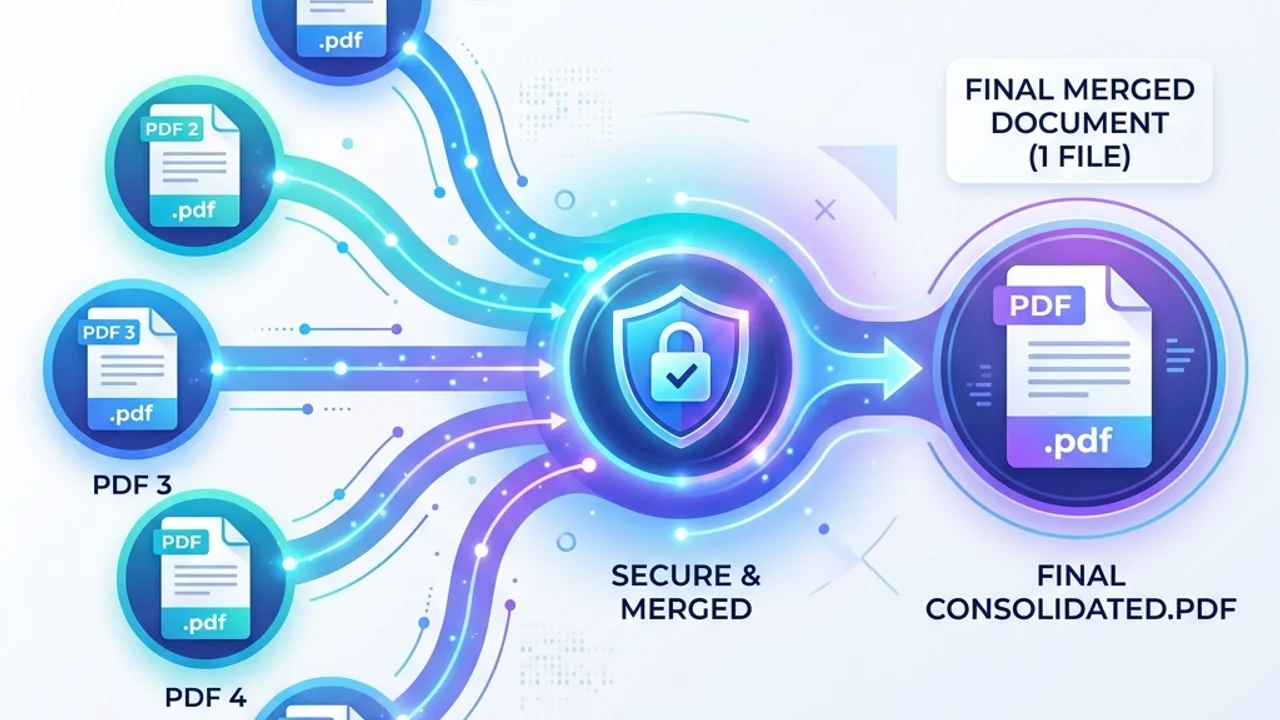
In modern business and personal administration, combining multiple PDF documents—such as resumes, contracts, tax statements, and project plans—into a single file is a routine task. Most users simply search for "merge PDF" on a search engine and upload their documents to the first free online conversion site that appears.
However, this common habit carries significant security risks and data privacy concerns. The files uploaded frequently contain highly sensitive information like Social Security numbers, bank details, physical signatures, and confidential corporate financial records. This guide explores the security dangers of online-based PDF tools and explains how to merge and manage your critical documents safely.
1. Analyzing the Security Risks of Online PDF Merging
Free online PDF merge sites incur significant costs to keep their web servers running. Aside from advertisements, their business model might rely on the underlying value of the data you upload. There are three major security risks you face when uploading documents to these servers:
Server-Side Storage and Retention
Most web tools state in their privacy policy that "uploaded files are deleted within 1 to 24 hours." However, users have no way of verifying if these files are truly erased from physical servers, backups, or cache layers. A single server hack or a bug in the cleanup script could expose thousands of contracts to the public internet.
Hidden Document Metadata
In addition to the visible text, PDF files contain metadata. This includes your computer account name, the specific software and versions used to generate the file, creation timestamps, and even remnants of previously deleted text. Uploading raw documents leaks these details to external web servers.
Malware and Exploits (PDF Exploit Vectors)
Using an untrusted online editor risks having malicious scripts or ransomware embedded into your merged output file. When you download the resulting PDF and open it on an office network, it can trigger a secondary cyberattack.
This table contrasts the differences between standard online upload converters and offline client-side web tools:
| Comparison Metric | Online Server Upload Tools | Offline Client-Side Web Tools |
|---|---|---|
| Security Level | 🚨 High Risk (Data leaves your device) | 🛡️ Extremely Safe (Data remains local) |
| Privacy Protection | Prone to data theft, leakage, and storage failures | Zero Risk (No data transfer over network) |
| Internet Dependency | Required (Cannot function offline) | Not required (Works offline after loading) |
| Processing Speed | Limited by upload/download bandwidth | Instantaneous (Utilizes local hardware) |
| Costs & Restrictions | Hidden limits, watermarks, paywalls | 100% Free with no usage restrictions |
2. A Security Checklist for Handling Critical PDFs
Take these preventative measures to keep your data safe when merging or converting files:
- Sanitize Document Metadata: Before combining files, clean out author names and software paths. You can do this by using PDF sanitizing software or printing the file to a virtual PDF printer to strip metadata.
- Flatten Layers and Signatures: If your PDF contains electronic signatures or stamps, keep in mind they can be extracted as separate image layers by specialized software. "Flattening" the PDF merges all elements into a single graphic layer, preventing tampering.
- Verify Network Traffic: You can test a web tool by opening your browser's Developer Tools (F12) and checking the Network tab. If uploading or converting a document initiates a
multipart/form-dataupload to an external IP address, stop using the service immediately.
3. A 3-Step Practical Guide to Merging Files Safely
Combine your PDF documents efficiently and securely using these steps:
- Organize Order Prematurely: Place all files you want to combine in a single folder. Rename them with numerical prefixes (e.g.,
01_proposal.pdf,02_appendix.pdf) to make arranging them easy. - Use a Secure Local Tool: Open a privacy-focused web tool that handles files locally inside your browser's memory using JavaScript/WebAssembly.
- Review the Merged Output: Open the downloaded file to verify that pages are in the correct order, fonts are rendering properly, and signatures are legible. Permanently delete the original files from your recycling bin.
4. Frequently Asked Questions (FAQ)
Q1. Can I merge PDF documents that are password-protected? A1. No, password-protected files cannot be merged directly because they are encrypted. You must first enter the passwords to decrypt the source documents, merge them, and then re-apply password encryption to the final merged document.
Q2. How can a web browser merge files offline without a server? A2. Modern web browsers run complex JavaScript and WebAssembly libraries. These libraries allow the browser to parse document bytes and compile them into a new PDF directly in the local CPU and RAM, eliminating the need to communicate with a remote server.
Q3. Is there a difference in file size when merging scanned PDFs versus text-based PDFs? A3. Yes. Text-based PDFs created directly from word processors are highly compressed and lightweight. Scanned PDFs are essentially a sequence of high-resolution images, resulting in a much larger merged file. It is recommended to compress the merged output if file size is a concern.
5. Safely Combine PDFs Locally in Seconds
If you are dealing with confidential business contracts or government filings, protect your privacy by using our PDF Merger. This utility operates 100% client-side inside your browser, meaning your data never leaves your computer. If you need to convert files to other formats afterwards, you can pair it with our PDF Converter to streamline your document workflow.
Recommended Reading
- Secure Password Tips & Guidelines: Protect your personal accounts from data breaches.
- Image Compression Guide: Optimize large images for faster web loading times.