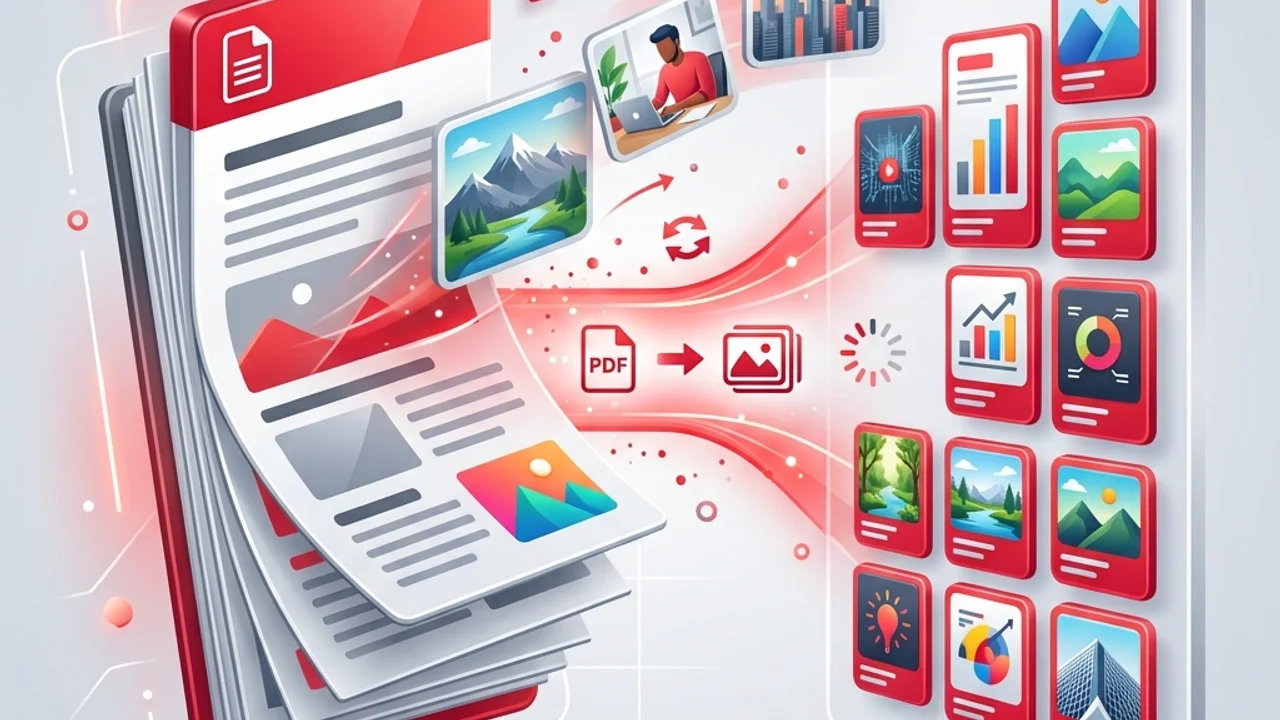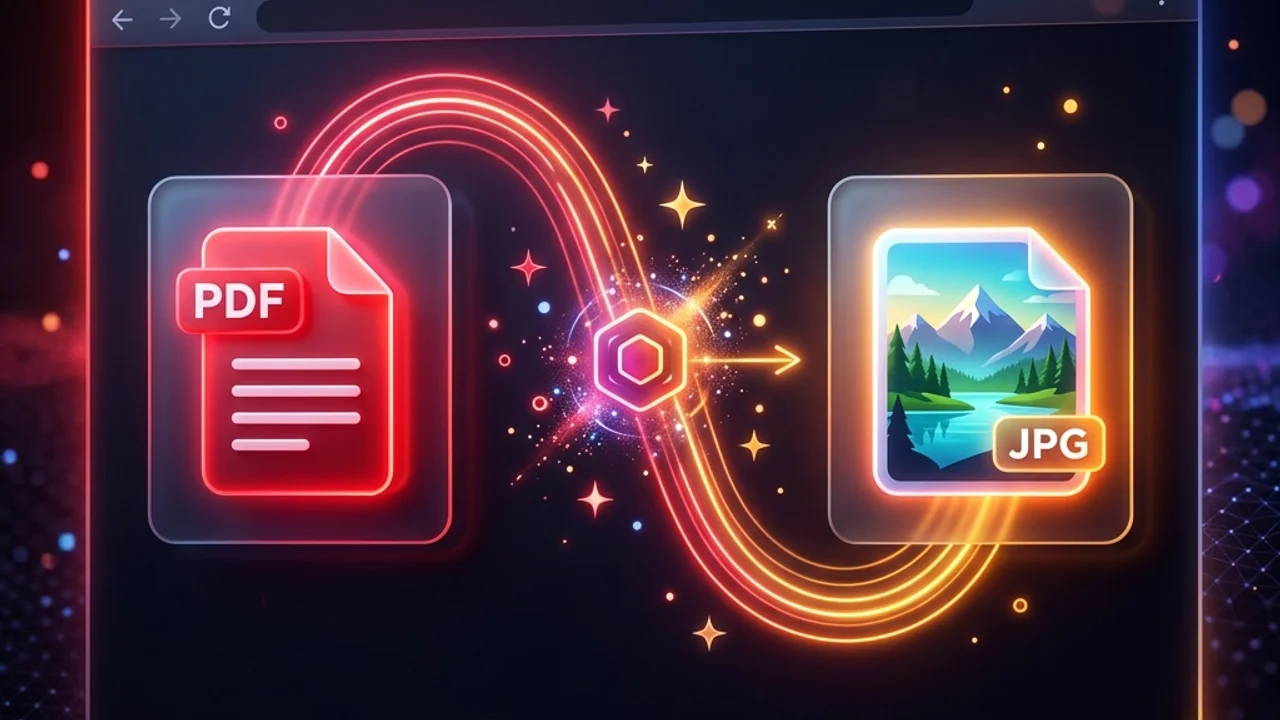
Whether you are preparing business slide decks, uploading design drafts to portfolio sites, or posting marketing materials on social media, you often need to convert PDF pages into standard image formats like JPG or PNG. The easiest way seems to be searching for "PDF to JPG" on Google and clicking the first free online conversion tool.
However, almost all traditional online PDF converters work by uploading your document to their remote web servers. If your PDF contains sensitive business contracts, financial logs, or personal identification records, uploading them represents a serious security risk and potential privacy breach. Furthermore, many of these web services compress images heavily to save server bandwidth, producing low-resolution, blurry outputs where fine text is unreadable. In this guide, we show you how to convert PDFs to high-resolution images securely, entirely inside your local browser.
1. Why Do PDF Image Conversions Look Blurry?
When you extract images from a PDF and find that the text is blurry or the chart lines are pixelated, the cause is low DPI (Dots Per Inch) settings during the rasterization process.
PDFs are vector-based documents, meaning they stay crisp at any zoom level. However, to convert them to raster images (like JPG/PNG), the conversion engine must convert vector math into pixels. Many standard web converters render pages at screen resolution (72 DPI or 96 DPI) to minimize file size. For crisp, professional images where fine text is readable, you need to scale the drawing canvas to at least 150 DPI or, ideally, 300 DPI for print-quality sharpness.
| Output Quality (DPI) | Pixel Density | Text Readability | Primary Use Case | Output File Size |
|---|---|---|---|---|
| 72 ~ 96 DPI | Low (Web Default) | Poor (fine print becomes blurry) | Quick mobile web previews | Very light |
| 150 DPI | Medium (Standard) | Good (standard font sizes readable) | Normal office document archives | Moderate |
| 300 DPI | High (Print Quality) | Excellent (crisp text, sharp vector curves) | Presentations, printing, vector charts | Heavy (WebP/JPEG recommended) |
2. Converting PDF Pages to High-Resolution Images Locally
To extract high-quality images from a PDF without installing heavy desktop software or risking data leaks, you can run the entire conversion process locally inside your modern web browser (Chrome, Safari, Edge) using these steps:
- Load a Local Converter: Use web utility pages built with client-side libraries (like
pdf.js) that render PDF pages inside your browser's local sandbox memory rather than transmitting files over the web. - Adjust Resolution Scaling: Import your file and set the resolution multiplier (e.g.,
2xor3xscale) to increase the canvas resolution before rendering the pages. - Choose Your Output Format:
- PNG: Best for documents consisting mostly of text, icons, or clean line drawings, as it preserves crisp boundaries and supports transparency.
- JPG: Best for image-heavy slides or photos with complex color gradients, allowing you to optimize file sizes by setting quality to
80%–90%.
- Download Locally: Save the generated image files directly to your Downloads folder. Since the files are processed in-memory, you can do this offline.
3. Crucial Checklist for PDF-to-Image Conversions
Keep these three technical considerations in mind when converting documents:
- File Size Inflation: Converting a 20-page document to high-resolution
300 DPIimages will generate massive files. To avoid running out of system memory, export pages in batches or download them as a compressed ZIP file. - Text Becomes Unselectable: Once a PDF is converted into an image, the text is flattened into pixels and is no longer selectable or searchable. If you need text selection, keep the file in PDF format.
- Handle Transparency (Alpha Channel): If your PDF design has a transparent background that you want to preserve for overlays, make sure to export as PNG. Exporting as JPEG will automatically replace transparent areas with a solid black or white background.
4. Frequently Asked Questions (FAQ)
Q1. Can I convert password-protected PDFs locally in my browser?
Yes. Unlike remote servers which reject locked files or crash due to encryption, client-side browser converters handle password-protected files natively. The browser will prompt you for the password locally, decrypt the file in-memory, and render the high-resolution pages without transmitting any decryption keys over the internet.
Q2. Why does the browser tab freeze during the conversion of large files?
If your PDF contains hundreds of pages or complex architectural CAD drawings, rendering them at 300 DPI uses significant CPU and memory. If your browser tab becomes unresponsive, try converting the file in smaller page ranges (e.g., pages 1–5, then pages 6–10) to keep memory usage low.
5. Convert PDFs Safely Online
If you need to convert private contracts or invoices to high-resolution JPGs without risking data leakage, try our free, 100% client-side PDF Converter. Your files never leave your device; they are processed inside your browser sandbox. For merging multiple PDF files securely, read our guide on Secure PDF Merging Strategies to manage your documents safely.