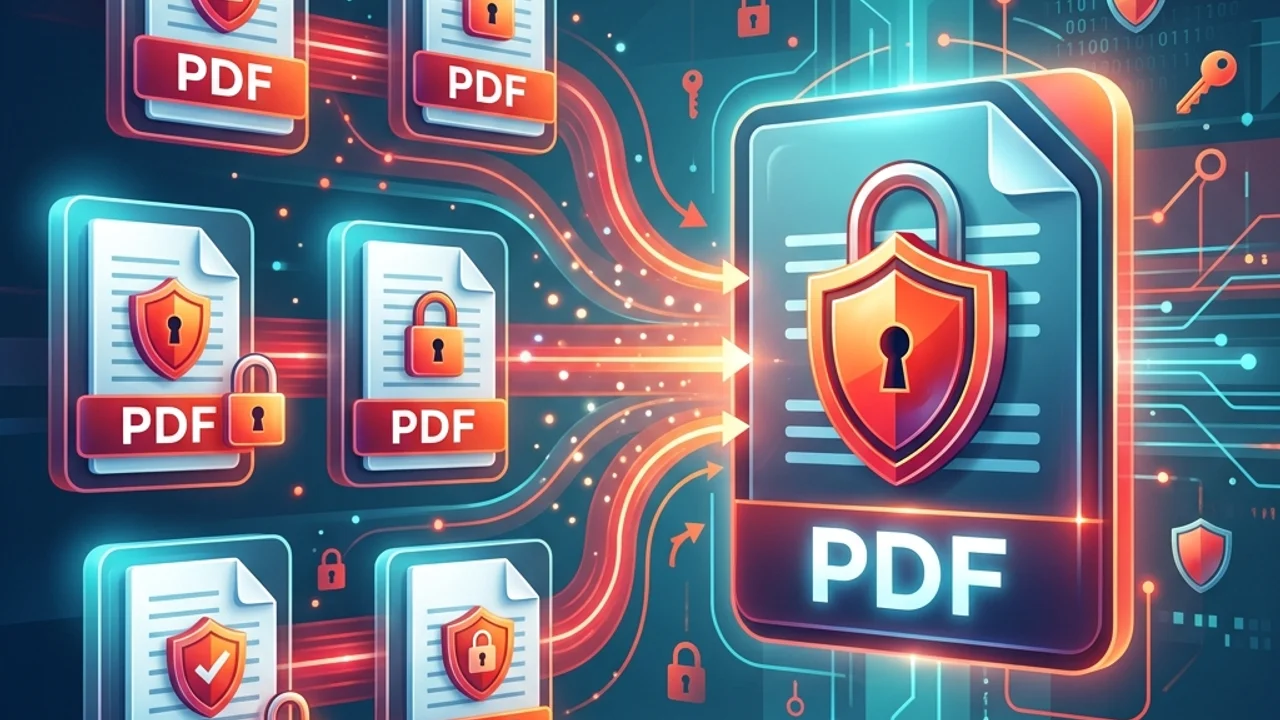
As the de-facto standard for digital documents, PDF (Portable Document Format) ensures that layouts, fonts, and formatting remain consistent regardless of the operating system, device, or reader software. However, handling PDF files directly in responsive web layouts presents a challenge. PDF is a fixed-layout standard based on PostScript, which operates differently from standard HTML and CSS.
The open-source JavaScript library PDF.js (developed by Mozilla) has made it possible to render PDF documents directly onto HTML5 <canvas> elements without external browser plugins. However, a naive implementation of PDF.js rendering leads to blurry text and pixelated lines on high-resolution screens (like Retina or 4K displays). In this guide, we analyze the geometry of PDF coordinates and show you how to apply high-DPI backing-store scaling using devicePixelRatio to achieve sharp rendering.
1. Geometric Coordinates: PDF vs. Responsive Web Standards
PDF documents position text characters, vector outlines, and raster graphics using absolute coordinates on a fixed canvas layout.
The 72-Points-per-Inch Standard
In PDF documents, dimensions are measured in Points (pt). By definition, 1 inch = 72 points. In contrast, standard web browsers target a nominal 96 PPI (Pixels Per Inch) or high-density physical screen pixels. When a browser maps a 72pt-per-inch PDF viewport directly to CSS pixels (1px = 1/96 inch) without scaling, the density mismatch results in pixel interpolation. This causes text and borders to stretch and blur during rendering.
The table below contrasts the layout properties of PDF files and responsive web standards:
| Feature | PDF (Portable Document Format) | Web Standards (HTML5 / CSS3) |
|---|---|---|
| Layout Logic | Absolute positioning (fixed layout) | Responsive flow (Flexbox, Grid, Auto-flow) |
| Measurement Unit | Points (1 pt = 1/72 inch) | Pixels (px), Relative units (em, rem, vw) |
| Resource Inclusion | Embedded font subsets and vector equations | Dynamic reliance on external stylesheets and web fonts |
| Scaling Behavior | Matrix transformations (lossless scaling) | CSS pixel rescaling and layout reflow |
| Sandbox Constraints | Restrictive Acrobat JS sandboxing | Open browser DOM access and asynchronous scripting |
2. Eliminating Blur: Backing Store vs. CSS Layout Scaling
Modern screens use a Device Pixel Ratio (DPR), representing the ratio of physical hardware pixels to virtual CSS pixels. Standard displays have a DPR of 1, whereas Retina or 4K screens have a DPR of 2 or 3.
When rendering PDF pages using PDF.js onto a canvas, setting canvas.width directly to the page width causes the browser to draw to a low-resolution virtual coordinate space. The browser then stretches this low-resolution image to match the physical pixels of high-density displays, creating blur.
The solution is to scale up the canvas's internal drawing buffer (backing store) by the DPR, while keeping its CSS display size locked to the original dimensions.
High-DPI Canvas Rendering Implementation
Here is the JavaScript code structure to implement this high-DPI scaling:
// 1. Get the device pixel ratio (DPR)
const dpr = window.devicePixelRatio || 1;

// 2. Define the desired scale for rendering
const baseScale = 1.5;
const viewport = page.getViewport({ scale: baseScale });

// 3. Scale the canvas drawing buffer by the DPR
canvas.width = viewport.width * dpr;
canvas.height = viewport.height * dpr;

// 4. Lock the CSS layout dimensions to the original viewport size
canvas.style.width = `${viewport.width}px`;
canvas.style.height = `${viewport.height}px`;

// 5. Apply the DPR scale to the canvas context and render
const ctx = canvas.getContext('2d');
const transform = dpr !== 1 ? [dpr, 0, 0, dpr, 0, 0] : null;

const renderContext = {
  canvasContext: ctx,
  transform: transform, // Set transformation matrix for physical pixel drawing
  viewport: viewport
};
page.render(renderContext);
By following this approach, the browser creates a high-density bitmap matching the physical pixel grid of the screen. When the canvas is rendered, the browser downsamples the high-resolution bitmap to fit the CSS layout boundaries, ensuring vector-like text legibility.
3. Best Practices for Lossless Web-Based PDF Conversions
When building client-side PDF converters or rendering pipelines, keep these guidelines in mind:
① Handle Missing Font Subsets
If a PDF was generated without its font subsets embedded inside the file, the browser defaults to system fallback fonts. This mismatch causes text overlap or parsing errors. To prevent this, register the standard font path (standardFontDataUrl) in PDF.js, enabling the library to fetch missing standard fonts dynamically.
② Configure CORS and Sandboxing
Fetching PDF documents from external storage servers (such as AWS S3 or Google Cloud Storage) triggers Cross-Origin Resource Sharing (CORS) blocks. Configure the remote server to return appropriate CORS headers (Access-Control-Allow-Origin: *). For local file inputs, process binary streams within memory-safe client-side environments to protect data privacy.
4. Frequently Asked Questions (FAQ)
Q1. How can I render a PDF at print-quality resolution (300 DPI)?
A1. Multiply the viewport scale factor by 4.16 (300 / 72 ≈ 4.16). Because rendering large documents at 300 DPI consumes considerable browser memory, create these high-resolution canvases dynamically only during print-preview triggers or file exports to avoid memory leaks.
Q2. Can PDF.js render password-protected documents?
A2. Yes. PDF.js provides an onPassword callback handler when loading a document. When the user enters the password, the built-in decryption module unlocks the document using standard AES or RC4 algorithms entirely within the client-side JavaScript sandbox.
Q3. Is it possible to make the canvas text selectable for copy-paste actions?
A3. Yes. PDF.js includes a TextLayerBuilder utility. This overlays invisible, absolute-positioned HTML <span> elements directly on top of the canvas. This allows users to search text (Ctrl+F) and copy-paste values while maintaining the canvas-rendered visual layout.
5. Convert and Process PDF Files Securely in Your Browser
If you want to split or convert confidential documents without exposing private data to third-party servers, use our local PDF Split & Convert Tool.
The entire rendering process takes place on your device, leveraging local hardware acceleration. To combine multiple documents, check out our Secure PDF Merger Guide. For verifying document changes, refer to our Text Diff Checker Guide.
Recommended Productivity Guides
- Security-Focused Lossless PDF Merging Techniques: Benefits of local, client-side document processing.
- Text Diff Algorithms and Version Tracking for Developers: Utilizing the LCS algorithm to compare paragraphs.