Introduction
When applying for a passport renewal, international visa, or resident registration online, one of the most common points of failure is the photo submission. Passports are official government identity documents, which means the photo specifications are strictly monitored. Requirements regarding dimensions, head-to-body ratios, backgrounds, and facial expressions are heavily standardized.
Even if you received a digital file from a photo studio, you might find that the pixel dimensions, aspect ratios, or file sizes are slightly incorrect, causing portal upload systems to reject your file. Utilizing expensive photo editing software just to adjust a couple of pixels is unnecessary and costly. In this guide, we break down standard international passport and visa photo dimensions, and provide a simple, secure method to resize and crop your photo directly in your browser.
International Passport and Visa Photo Standards
Different countries specify different physical sizes and framing ratios. Below is a comparison table outlining the differences between South Korean and U.S. passport photo specifications:
1. Photo Standards Comparison Table
| Feature / Criteria | South Korea Passport Standard | U.S. Passport Standard (US Visa) |
|---|---|---|
| Physical Size | 35 mm × 45 mm (3.5 cm × 4.5 cm) | 2 × 2 inches (51 mm × 51 mm) |
| Digital Resolution | 413 px × 531 px (Recommended at 300 DPI) | 600 px × 600 px minimum (up to 1200 px) |
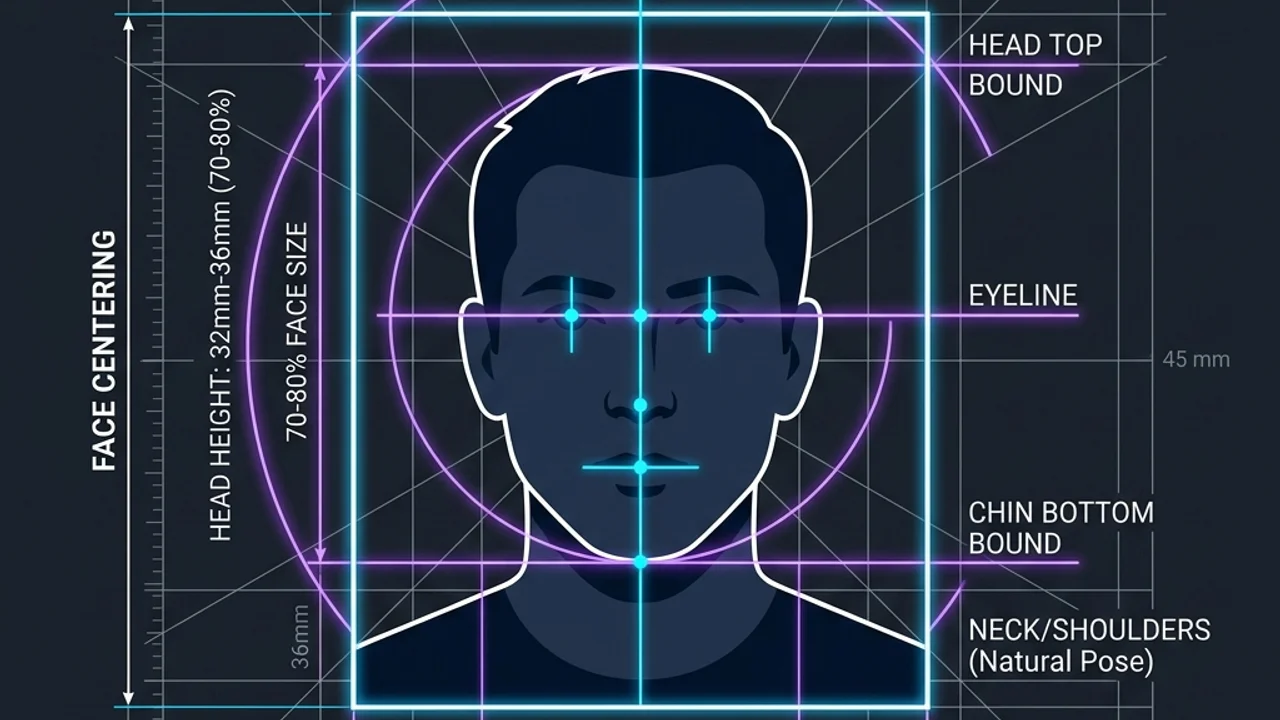
| Head Height Ratio | 32 mm to 36 mm (70% to 80% of total height) | 1 inch to 1.38 inches (50% to 69% of height) |
| Background Color | Plain, uniform solid white | Plain, uniform white or off-white |
| Eyeglasses | Strictly Prohibited | Strictly Prohibited |
2. Common Online Submission Technical Rules
Most official portals (like Government24 for South Korea or the US Department of State portal) enforce the following technical constraints for digital uploads:
- Max File Size: Usually
500KBor less to avoid timeout errors. - Aspect Ratio: Must match the required dimensions exactly (1:1.285 for KR, 1:1 for US).
- High Contrast: Avoid scanned physical photos, shadows on the face, or reflections on the skin. Use raw digital images whenever possible.
Step-by-Step Guide to Resizing Passport Photos Online
Uploading your face photo to untrusted online servers can jeopardize your personal identity. Using a local client-side tool that executes resizing math strictly in browser memory is much safer.
Step 1: Input Dimensions
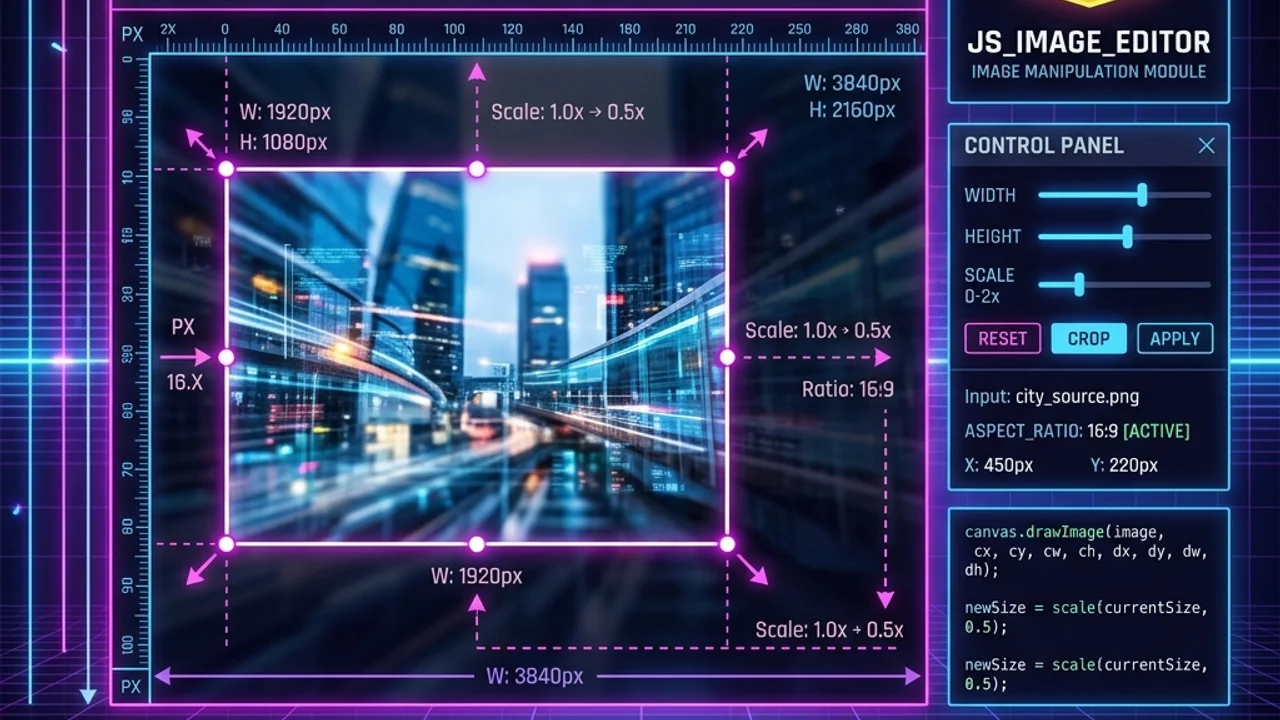
- Open the Toolhub Social Resizer tool in your browser.
- Drag and drop your portrait photo into the uploader.
- In the custom crop dimensions, enter your target size (e.g., width
413and height531for a Korean passport, or600by600for a US visa).
Step 2: Crop and Frame
- Move the cropping box until your face is centered.
- Adjust the crop boundaries so that your head (from top of hair to chin) occupies the required ratio (70% for KR passport, 50% for US visa). A good rule of thumb is to ensure your shoulders are visible at the bottom of the crop box.
- Click [Crop and Save Image].
Step 3: Check File Size
Ensure the output file is saved as a JPEG and that the final file size is under the 500KB threshold before uploading to the portal.
FAQ & Troubleshooting
Q. Can I wear a white shirt in the photo?
No. Because the background must be solid white, wearing a white shirt makes you blend into the background, which can cause biometric scanning software to fail. Always wear a dark, contrasting color that stands out from the white background.
Q. Why can't I wear glasses or contact lenses?
For security, passport photo scanners analyze pupil distance, eye colors, and facial symmetry. Glasses (even prescription ones) create glares and reflections, while colored or circle contact lenses alter your natural eye features. These will result in immediate rejection by border control databases.
Secure Photo Editing Tools (CTA)
To crop and resize your passport and visa photos quickly and securely without sending your personal face data over the internet, use our free local uploader:
- Our Tool: /en/tools/social-resizer - Secure Local Image Editor with 100% Client-Side Processing.
Related Guides
- /en/blog/social-media-image-size-guide - Social Media Dimensions: Optimal Sizes for Instagram, YouTube, and LinkedIn
- /en/blog/image-compression-guide - Web Image Optimization Guide: How to Reduce Image Size Without Quality Loss
- /en/blog/javascript-image-resize-client-side - How to Crop and Resize Images on the Client Side using JavaScript Canvas