Introduction
In modern web applications, high-resolution photo uploads are a common feature. However, as smartphone cameras capture increasingly detailed images, file sizes can easily reach 10MB to 20MB. Uploading these raw files directly to a backend server leads to massive bandwidth consumption, slow upload times, and poor user experiences—especially on mobile networks.
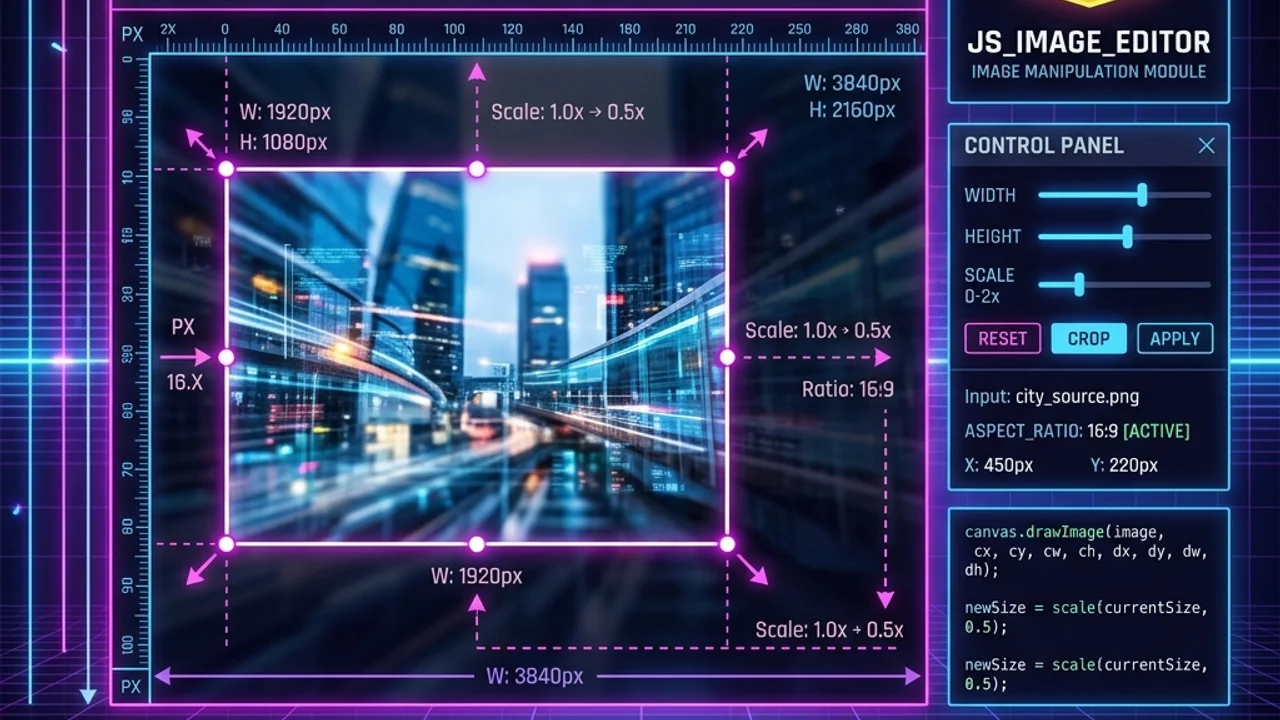
To optimize this workflow, developers can perform client-side image resizing and cropping directly in the browser. By scaling down the image to target dimensions locally before transmitting it, you reduce the network payload by up to 90%. In this tutorial, we will explore how to use the HTML5 Canvas API in vanilla JavaScript to crop, scale, and compress images on the client side.
Client-Side Image Resizing Principles
The core mechanism for manipulating images in the browser is the HTML5 Canvas element. By rendering an image onto a virtual canvas, you can read, crop, resize, and export the pixel data using the canvas's 2D context.
1. Understanding drawImage() for Cropping and Scaling
To achieve both cropping and scaling in a single operation, you use the 9-parameter version of the ctx.drawImage() method:
ctx.drawImage(image, sx, sy, sWidth, sHeight, dx, dy, dWidth, dHeight);
| Parameter | Role | Description |
|---|---|---|
image |
Source Image | The loaded HTMLImageElement object. |
sx, sy |
Crop Origin | The starting X & Y coordinates on the source image. |
sWidth, sHeight |
Crop Size | The width and height of the bounding crop box on the source. |
dx, dy |
Canvas Destination | The X & Y coordinates where drawing starts on the canvas. |
dWidth, dHeight |
Scaled Dimensions | The final target dimensions drawn on the canvas (scaling occurs here). |
2. Client-Side vs. Server-Side Processing
| Comparison Metric | Client-Side (Canvas API) | Server-Side (Node.js Sharp, Python PIL) |
|---|---|---|
| Network Traffic | Extremely Low: Compress files to target size before sending. | High: Must upload the entire raw file first. |
| Server CPU Load | Zero: Distributed across users' local devices. | High: Heavy image operations block server event loops. |
| Privacy Compliance | Excellent: Crop out sensitive areas locally before sending. | Moderate: Original image data must touch server memory. |
| Quality Fine-Tuning | Limited to browser-native interpolation algorithms. | Highly customizable with advanced mathematical filters. |
Step-by-Step Implementation Guide
Let’s implement a frontend script that accepts an uploaded file, crops it to a 400x400 square from the center (aspect ratio preservation), and prepares it for upload.
1. HTML Markup
<div class="uploader">
  <input type="file" id="file-input" accept="image/*" />
  <div class="preview-area">
    <canvas id="canvas-editor" width="400" height="400"></canvas>
  </div>
  <button id="upload-btn">Upload Optimized Image</button>
</div>
2. JavaScript Code
const fileInput = document.getElementById('file-input');
const canvas = document.getElementById('canvas-editor');
const ctx = canvas.getContext('2d');
const uploadBtn = document.getElementById('upload-btn');

let loadedImage = null;

fileInput.addEventListener('change', (e) => {
  const file = e.target.files[0];
  if (!file) return;

  const reader = new FileReader();
  reader.onload = (event) => {
    const img = new Image();
    img.onload = () => {
      loadedImage = img;
      centerCropAndResize(img);
    };
    img.src = event.target.result;
  };
  reader.readAsDataURL(file);
});

// Crops the center of the image and resizes it to 400x400
function centerCropAndResize(img) {
  const targetW = 400;
  const targetH = 400;

  canvas.width = targetW;
  canvas.height = targetH;

  const originalAspect = img.width / img.height;
  const targetAspect = targetW / targetH;

  let sx, sy, sWidth, sHeight;

  if (originalAspect > targetAspect) {
    // Source is wider than target aspect ratio: Crop left and right sides
    sHeight = img.height;
    sWidth = img.height * targetAspect;
    sx = (img.width - sWidth) / 2;
    sy = 0;
  } else {
    // Source is taller than target aspect ratio: Crop top and bottom
    sWidth = img.width;
    sHeight = img.width / targetAspect;
    sx = 0;
    sy = (img.height - sHeight) / 2;
  }

  // Optimize interpolation quality
  ctx.imageSmoothingEnabled = true;
  ctx.imageSmoothingQuality = 'high';

  // Render on canvas
  ctx.drawImage(img, sx, sy, sWidth, sHeight, 0, 0, targetW, targetH);
}

// Convert canvas drawing to Blob and upload to server
uploadBtn.addEventListener('click', () => {
  if (!loadedImage) return alert('Please select an image first.');

  // Convert canvas to a compressed JPEG Blob (85% quality)
  canvas.toBlob((blob) => {
    const formData = new FormData();
    formData.append('profile_image', blob, 'optimized.jpg');

    fetch('/api/upload', {
      method: 'POST',
      body: formData
    })
    .then(res => res.json())
    .then(data => console.log('Successfully uploaded:', data))
    .catch(err => console.error('Upload failed:', err));
  }, 'image/jpeg', 0.85);
});
FAQ & Troubleshooting
Q. How can I handle jagged pixel artifacts when downscaling huge images?
If you resize a huge 6000px image down to 400px in a single step, browser interpolation can create pixelated artifacts. To fix this, use a step-down resizing loop. Scale the image down progressively by half (6000px -> 3000px -> 1500px -> 750px -> 375px) on offscreen canvas elements. This step-by-step scaling produces much smoother anti-aliased results.
Q. Why are some mobile upload images rotated sideways on canvas?
Smartphones embed an EXIF Orientation tag in the image metadata. Some older browsers don't read this and draw the raw pixels directly, causing portrait photos to appear landscape. To correct this, you must extract the EXIF orientation tag (using a library like exif-js) and use Canvas translation and rotation methods (ctx.rotate) before calling drawImage().
Call to Action & Recommendations
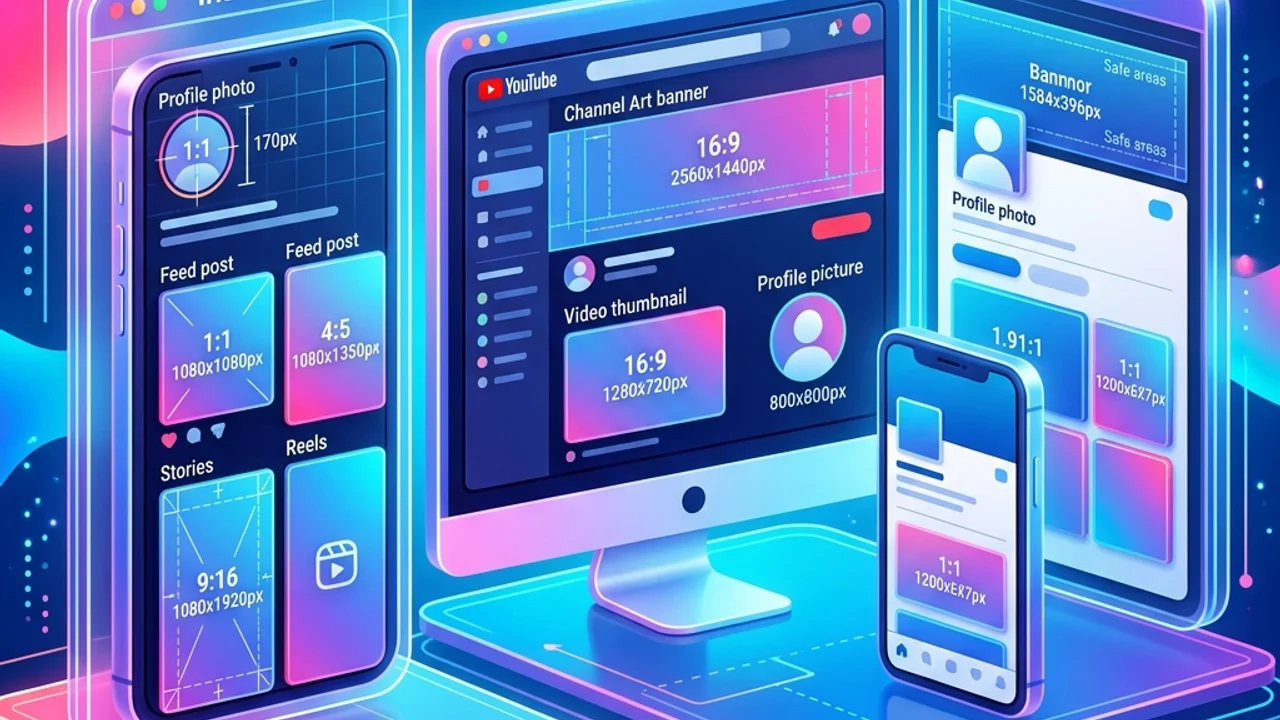
If you want to resize and crop images to social media dimensions instantly without uploading them to remote servers, try our free browser tool:
- Our Tool: /en/tools/social-resizer - Secure Local Image Resizer & Cropper with Zero Data Overhead.
Related Guides
- /en/blog/social-media-image-size-guide - Social Media Image Dimensions: Standard Dimensions for Instagram, YouTube, and LinkedIn
- /en/blog/image-compression-guide - Web Image Optimization Guide: How to Reduce Image Size Without Quality Loss
- /en/blog/javascript-client-side-image-compression - Client-Side Image Compression in JavaScript using Web Workers