Have you ever ended up with multiple versions of a draft or contract, and struggled to figure out what was added or deleted? Or perhaps you have spent hours manually proofreading two documents line-by-line to spot tiny spelling changes. Manually comparing texts is slow and highly prone to human error.
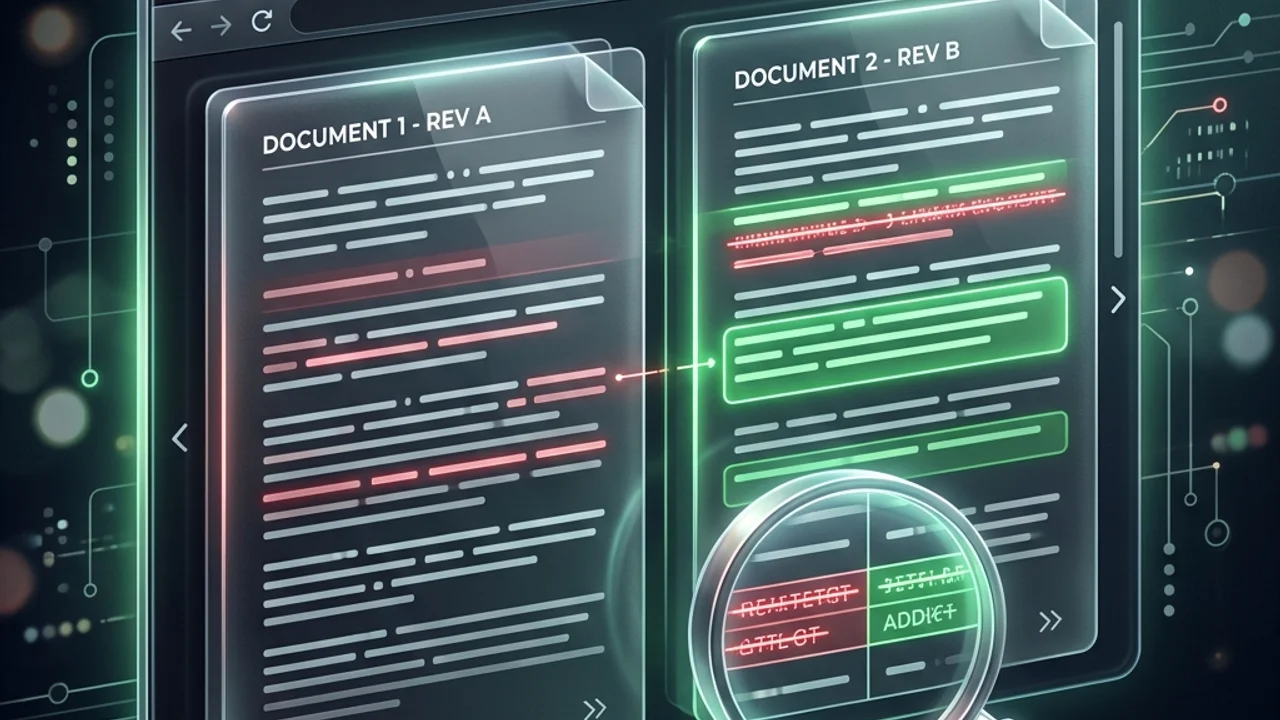
An online text diff checker is the perfect tool for this task. By pasting your original and modified texts into two side-by-side windows, you can instantly see edits highlighted in red (deletions) and green (additions). However, many online tools present a major privacy risk: if your documents contain sensitive personal data or proprietary company information, uploading them to external servers can lead to leaks. In this guide, we show you how to compare two text files securely, entirely within your local browser.
1. How Text Comparison Works: Side-by-Side vs. Inline Views
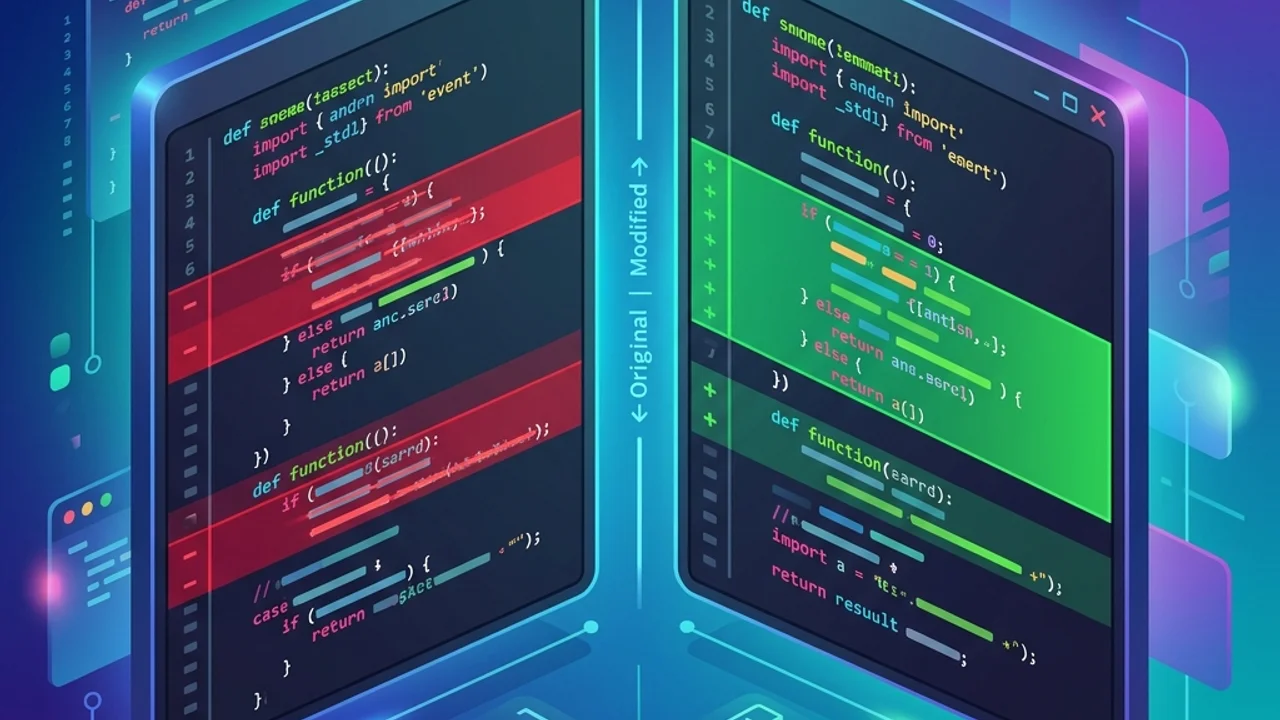
Text comparison tools use the LCS (Longest Common Subsequence) algorithm. The comparison engine finds the longest sequence of characters that appears in both texts, sets it as the baseline, and highlights the deviations—deletions in red and additions in green.
Online tools offer two main layouts for displaying differences. Choose the one that fits your reading style:
| View Mode | Layout Style | Advantages | Disadvantages | Best Used For |
|---|---|---|---|---|
| Side-by-Side (Split) | Left (Original) / Right (Modified) | Makes it easy to compare structural and paragraph-level flow | Hard to read on narrow screens, such as mobile devices | Comparing long documents, code structure, or articles |
| Inline (Unified) | Single vertical list with merged edits | Works well on narrow screens and mobile layouts | Reading the flow of both versions at the same time is difficult | Fast checks, quick spelling comparisons on the go |
2. 3 Tips to Safely Compare Documents Online
To compare your texts accurately without compromising your privacy, follow these best practices:
- Choose a Local-First Tool: Look for a diff checker that runs entirely inside your browser sandbox using JavaScript. This ensures that no data leaves your device or is stored in a remote database.
- Select the Right Diff Level:
- Line-Level Diff: Best for comparing code blocks, config files, or whole paragraphs to see where major changes occurred.
- Character-Level Diff: Critical for catching spelling mistakes, punctuation errors, or small numerical updates within a sentence.
- Use the "Ignore Whitespace" Setting: Extra spaces or line breaks can trigger false positives, coloring unchanged text in red and green. Turning on "Ignore Whitespace" lets you focus on actual textual changes.
3. Frequently Asked Questions (FAQ)
Q1. Can I compare Word (.docx) or PDF files directly?
Usually, you cannot load raw binary .docx or .pdf files directly into a browser text box. Instead, open the documents, select all text (Ctrl+A), copy it (Ctrl+C), and paste it into the comparison windows. This extracts only the raw text, allowing you to run a full comparison.
Q2. Will the browser freeze if I paste very long documents?
Since comparison calculations happen locally on your computer, pasting an entire novel and running character-level diffs can temporarily lock up your browser tab. For long documents, copy and paste chapter-by-chapter, or switch to line-level diffs to reduce CPU load.
4. Compare Your Texts Safely Online
If you want to compare confidential email drafts or contracts without risking privacy leaks, try our free client-side Diff Checker. Your text stays inside your browser's local sandbox memory. If you are a developer interested in how the underlying LCS comparison algorithm is built, visit our LCS Algorithm Code Diff Guide blog post to learn more.